
Project Desk
The Project desk lets you create AI-powered workspaces that bring together conversations, files, and a dedicated agent in one place. Each project gives the AI direct access to your files and selected conversations, so it can read, search, create, and edit documents on your behalf.
Select the Project desk in the sidebar to see all your projects.
Creating a project
- Open the Agent menu in the menu bar and choose New Project.
- Give your project a name.
- Choose a folder on disk. This becomes the project's base folder, the root directory the agent can work with.
The new project appears in the Project desk with its own agent conversation and sidebar.
The project sidebar
When you select a project, a sidebar appears on the right showing five collapsible cards. Each card controls a different aspect of the project.
Agent Capability
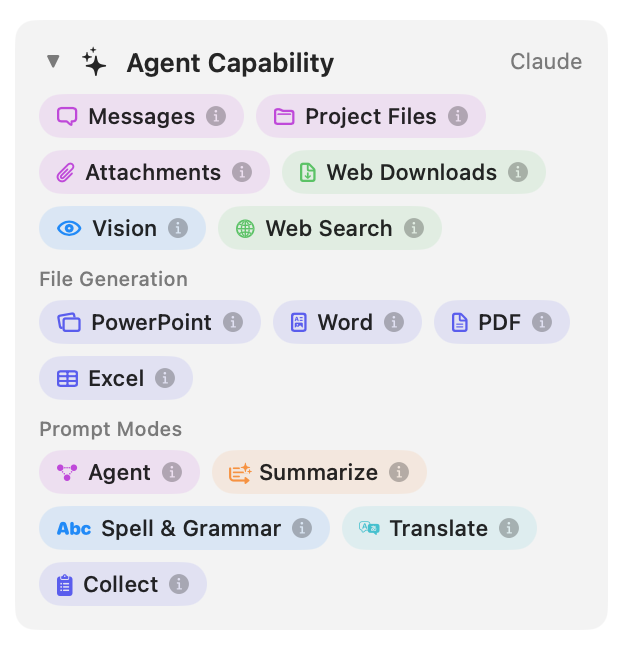
This card displays the currently selected LLM model and everything it supports. Capabilities are shown as pills grouped into three sections:
- Tools : What data the agent can access and what actions it can take: Messages, Project Files, Attachments, Web Downloads, Vision, and Web Search.
- File Generation : Document types the agent can create or edit: PowerPoint, Word, PDF, and Excel.
- Prompt Modes : The available agent modes: Agent, Summarize, Spell & Grammar, Translate, and Collect.
Tap the infobutton on any pill to learn what that capability does. The capabilities shown depend on the model you've selected. Switching to a different provider or model may change what's available.
Project Context
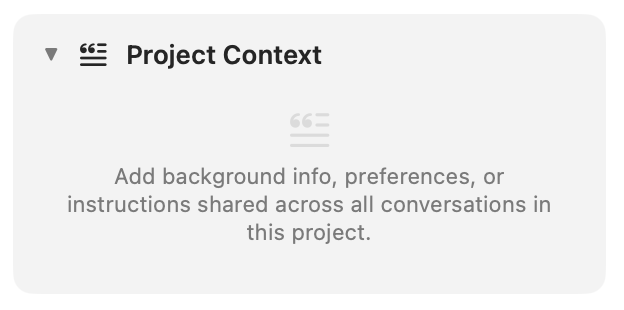
The Project Context card is a text area where you can write background information, preferences, or standing instructions that the agent will consider with every request. This context is shared across all agent conversations within the project.
For example, you might write “This project is a client proposal for Acme Corp. Keep all responses professional and formal.” or “The codebase uses Swift and follows MVVM architecture.”
Conversations
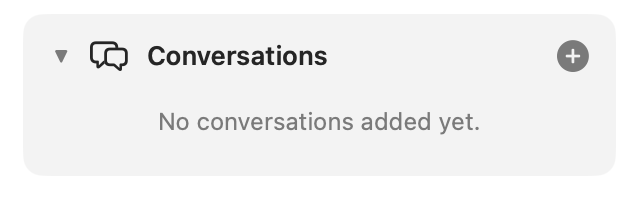
This card lets you link existing conversations to the project. The agent can then search and reference messages from those conversations when answering your questions.
Click the + button to open a searchable picker and add conversations. Each linked conversation appears as a pill that you can remove at any time.

Assets
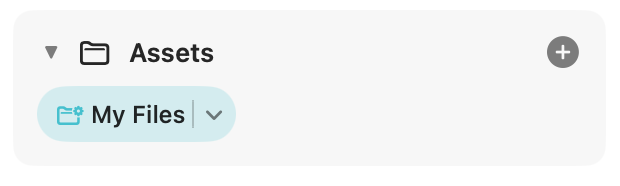
The Assets card shows all files and folders attached to the project. The base folder you chose when creating the project appears here automatically. You can add more files or folders by clicking the + button or by dragging them in from Finder.
Click a folder pill to browse its contents inline, with a breadcrumb path bar for navigation. The agent can read, search, create, edit, move, and delete files within your project assets.
What the agent can do
The project agent has a powerful set of tools that go beyond standard agent conversations:
| Tool | Description |
|---|---|
| List files | Browse files and folders in the project with configurable depth. |
| Read files | Read the content of any file in the project assets. |
| Search files | Search for text across all project files. |
| Create files | Create new files in the project folder. |
| Edit files | Make targeted edits to existing files using find and replace. |
| Move & rename | Move or rename files within the project. |
| Delete files | Remove files from the project folder. |
| Save attachments | Save attachments from linked conversations directly into the project. |
| Download files | Download files from URLs into the project folder. |
| Generate documents | Create or edit PowerPoint, Word, PDF, and Excel files. |
File generation
When supported by the selected model, the agent can generate rich documents directly in your project folder. Ask it to create a presentation, write a report, build a spreadsheet, or produce a PDF. The file is saved to your project assets and ready to use.
The agent can also edit existing documents in these formats using a built-in code interpreter, so you can ask it to update a spreadsheet, restyle a presentation, or merge data into an existing file.
Security
Project file access uses macOS security-scoped bookmarks, which means Blabble only has access to the specific files and folders you've explicitly added to the project. The agent cannot access files outside your project assets.
If you move a project folder to a new location, Blabble will detect the change and ask you to relocate it so the agent can continue accessing your files.