
Chat Sources
A chat source (also called a Blabble) is a connection to a messaging platform. Each source reads messages from a local database on your Mac. No cloud access or login is required.
Adding a source
- Open Blabble → Preferences (⌘,).
- Go to the Blabbles tab.
- Click the + button at the bottom of the source list.
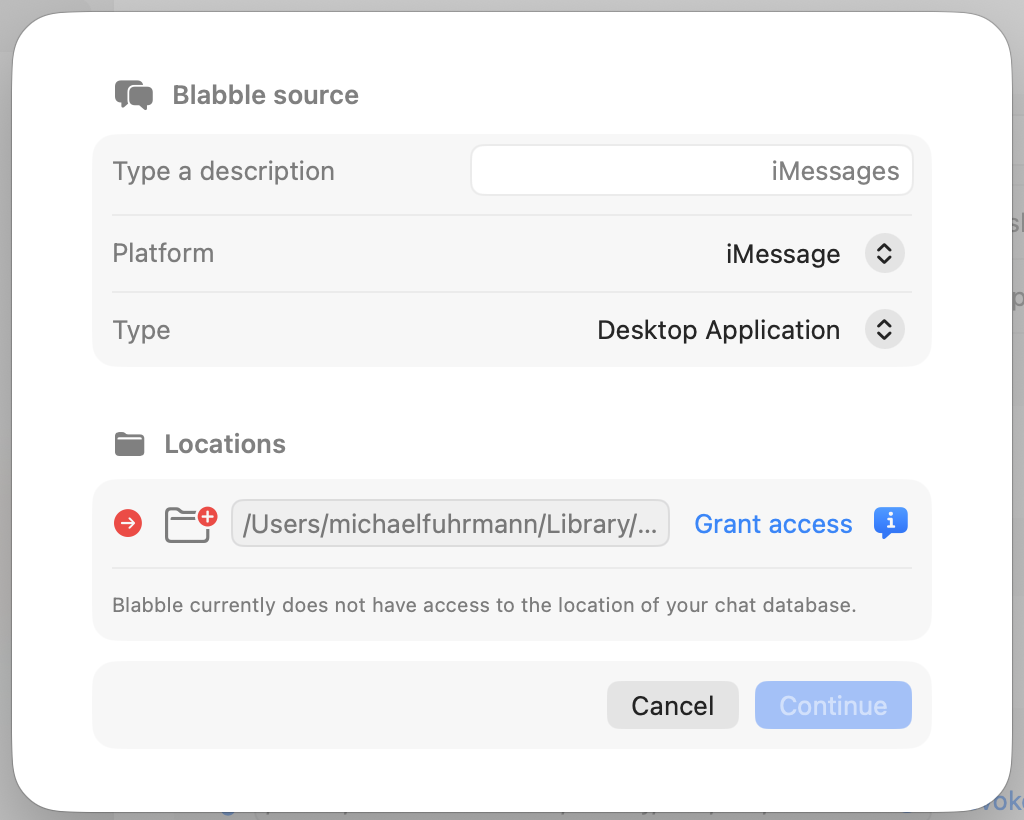
- Choose the platform (iMessage, WhatsApp, or Mail) and the source type (Desktop or Mobile Device).
- Follow the on-screen instructions to select the database location.
iMessage
Desktop: Reads directly from the Messages app database on your Mac. Blabble auto-detects the default location. You will be asked to grant folder access once.
From device backup: Import iMessage conversations from an iPhone or iPad backup stored on your Mac. Supports both encrypted and unencrypted backups.
Desktop: Reads from the WhatsApp Desktop app (Mac App Store). WhatsApp must be installed and linked to your phone.
From device backup: Import WhatsApp conversations from an iPhone backup. Useful when you own multiple devices.
Reads from the macOS Mail app. Mail must be running and configured with your email accounts. Blabble reads locally cached emails. It does not connect to any mail server directly.
Spam Check
Blabble can analyze email messages for spam and fraud using a large language model. Enable it in Preferences → AI → Spam Check. When enabled, a Check Spam button appears on each email. The model classifies the message as:
- Spam (orange): Unsolicited commercial or promotional email.
- Fraud (red): Phishing, scam, or deceptive email.
- Clear (green): The email appears legitimate.
Refreshing sources
- Manual refresh: Immediately refreshes all sources.
- Auto-refresh toggle: Switches between manual (M) and auto (A) mode. In auto mode, Blabble watches each source database for changes in the background.

You can configure auto-refresh per source in its settings. A manual refresh also runs automatically every 24 hours for all sources.

File access
Blabble does not require Full Disk Access. When you create a source, you grant access to the specific folder containing the database. These permissions are saved as security-scoped bookmarks. You only need to grant access once.
